
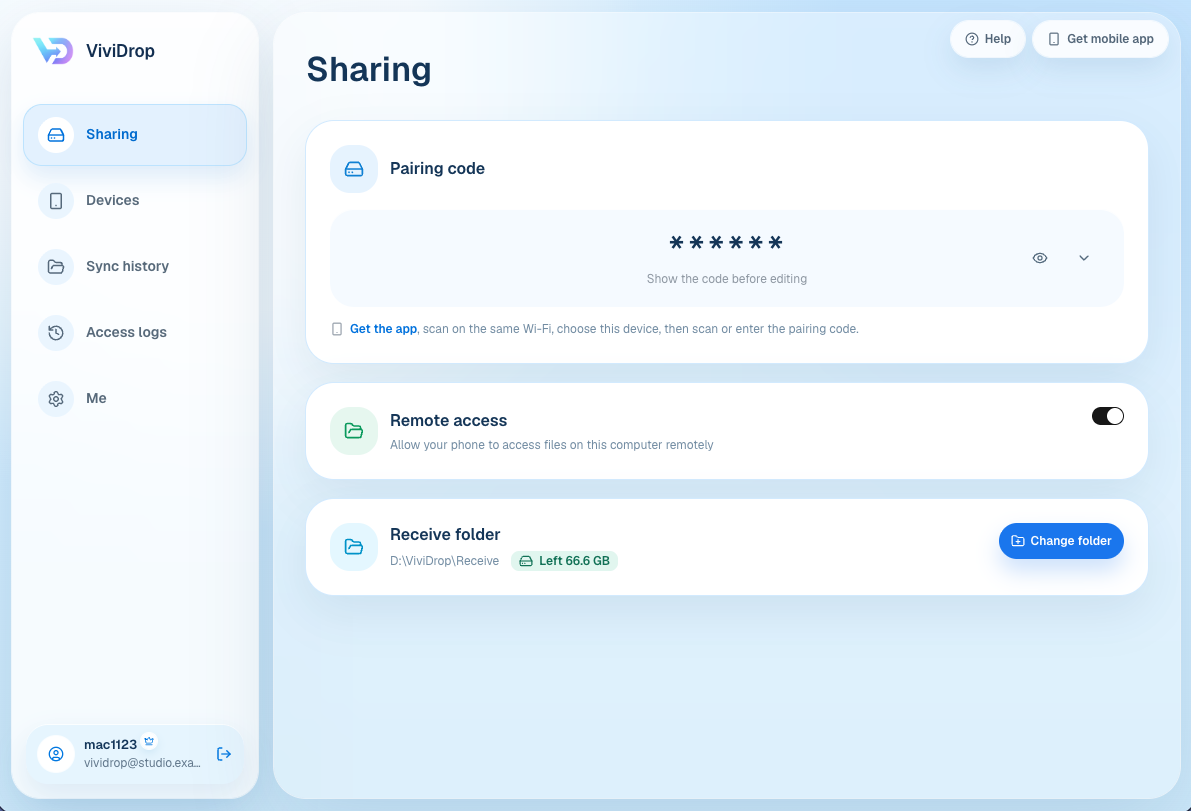
You can reach files stored on a computer from a phone with cloud storage, remote desktop, a VPN and network share, or a computer-first file-access tool. The right method depends on whether the computer can stay online, whether collaboration matters, and whether access happens on the same local network or from somewhere else.
Four ways to reach a computer file
Upload it to cloud storage
Cloud storage is usually the best fit when a file should remain available without keeping your own computer online, or when link sharing and collaboration are central. The file must first be uploaded to the service.
Use remote desktop
Remote desktop is useful when you need to control an application or the whole computer. It can be more than you need when the task is simply retrieving one PDF, photo, or video.
Use a VPN and network file share
Technical users can connect to a home or office network and expose a file share through a controlled VPN. This can be flexible, but configuration, permissions, certificates, router behavior, updates, and maintenance remain the user's responsibility.
Use a computer-first file-access tool
This model keeps the computer as the main file location and turns the phone into an access point. LynavoDrive supports iOS and Android phones with macOS and Windows computers.
What LynavoDrive requires
Prepare:
- LynavoDrive installed on a supported phone and computer.
- An internet connection for initial setup.
- Both devices on the same local network for the first connection.
- A connected and authorized phone.
- The computer online with the desktop client running.
- One non-sensitive file in a non-hidden test directory.
The phone can access all non-hidden directories on the computer, subject to operating-system protections. Review what is visible with a non-sensitive test directory before using the workflow for personal or work data.
Access files on the same local network
- Open LynavoDrive on the computer.
- Confirm that the phone and computer completed their initial same-LAN connection.
- Confirm that the phone is still authorized.
- Open the computer-file view on the phone.
- Browse to a non-hidden test directory.
- Download one sample file and confirm that it opens.
Initial setup requires public internet access. After setup, LAN file access can work on the same local network without public internet access. The router must still allow device-to-device communication; guest, office, or campus Wi-Fi may isolate clients even when both devices show the same network name.
Access files away from the local network
Cross-network computer access is a paid capability in the official LynavoDrive build. Before leaving the LAN:
- Complete the first phone-to-computer connection on the same LAN.
- Confirm that the phone is authorized.
- Keep the computer online and the desktop client running.
- Keep the desktop signed in and Remote access enabled.
- Confirm that the mobile account has an active trial or subscription.
Transfers are encrypted. Cross-network access may use a relay service, while LynavoDrive servers retain account information but do not retain file content. This is not a claim of end-to-end encryption or absolute safety; review the Privacy Policy and Terms of Service for the current service boundary.
Current limitations
- A powered-off, sleeping, disconnected, or unavailable computer cannot serve files.
- Cross-network access is paid.
- Hidden or operating-system-protected content is outside the stated accessible-directory scope.
- Phone-side and computer-side deletions are independent; this is not full two-way folder synchronization.
- Actual transfer behavior depends on the devices, network, file, and available storage.
- Remote access is not a second backup copy.
Which method should you choose?
Choose cloud storage when you need collaboration or access without keeping your own computer online. Choose remote desktop when you need to control applications. Choose a VPN and file share when you want a configurable technical setup and are prepared to maintain it.
Consider a computer-first tool when the computer is already the main file location and the goal is to retrieve files without uploading each one to another service first.
Frequently asked questions
Does LynavoDrive work when the computer is off?
No. The computer must be online and the LynavoDrive desktop client must be running.
Does LAN file access always require public internet?
No. Initial setup requires an internet connection. After setup, LAN file access can work on the same local network without public internet access.
Is cross-network access free?
No. Cross-network computer access is a paid capability. Check the current plan details and the price shown by the payment platform at checkout.
Do LynavoDrive servers keep file content?
Cross-network access may use a relay and transfers are encrypted. LynavoDrive servers retain account information but do not retain file content.
Is this full two-way folder sync?
No. Phone-side and computer-side deletions are independent.
When the operating boundaries fit your use case, download LynavoDrive and start with one non-sensitive sample file.