
iCloud, Google Drive, and a computer-first backup workflow solve different problems. The useful question is not which service has the longest feature list. It is where you want the main copy to live, how you expect to reach it, and who should manage the storage.
This guide compares storage models rather than changing price or capacity tiers. It also treats Google Drive as a general file-storage and sharing service, not as a claim that it automatically backs up a phone photo library.
The short answer
- Choose iCloud when Apple device integration and an iCloud Photos workflow are central.
- Choose Google Drive when browser access, file sharing, and collaboration across platforms are central.
- Choose a computer-first backup when you want a Mac or Windows computer you control to be the main destination for phone photos and videos.
- Combine methods when important files need both a convenient working copy and an off-site copy.
There is no universal winner. Each model creates a different operating boundary.
iCloud: an Apple-centered cloud workflow
Apple describes iCloud Photos as a way to keep photos and videos stored in iCloud and updated across devices. Users can choose whether a Mac downloads originals or optimizes local storage. Those settings matter when deciding which device holds a full local copy.
This model fits people who primarily use Apple devices and want the Photos app and iCloud account to manage availability across them. Storage use, synchronization, editing, and deletion behavior should be reviewed in Apple's current iCloud Photos documentation before changing an existing library.
Google Drive: cloud file access and sharing
Google Drive is designed around files stored in My Drive or shared spaces, with browser and app access and link-based collaboration. A file must be uploaded to Drive before Drive can provide it elsewhere.
This model fits workflows centered on documents, folders, sharing, and collaboration across different devices. For current upload, offline, sharing, and storage behavior, consult Google Drive Help rather than relying on a fixed comparison table.
Computer-first backup: your computer as the destination
A computer-first workflow sends phone media to a computer you already control. The result is a normal local file that can be opened, organized, and backed up again with tools you choose.
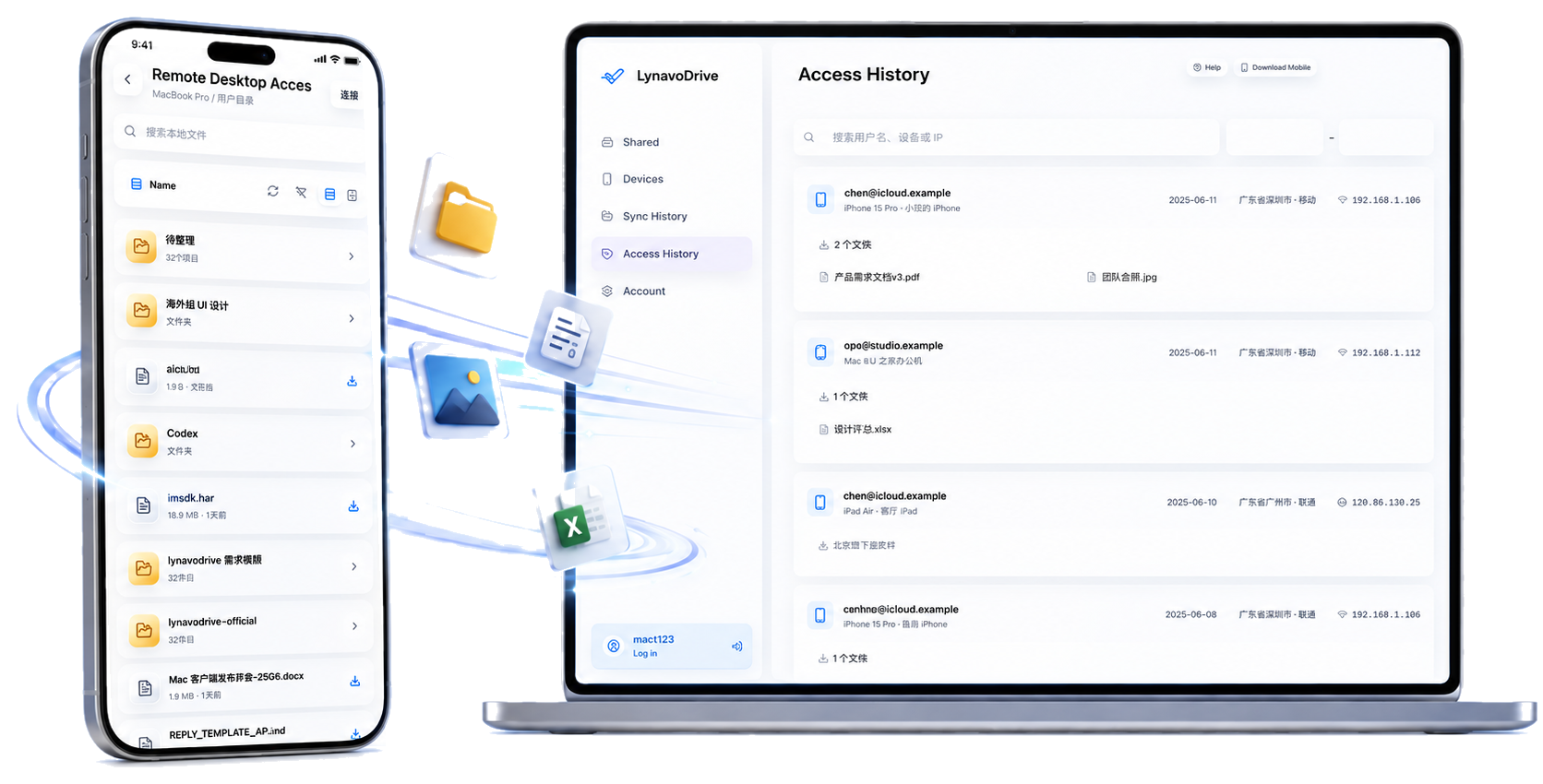
With LynavoDrive, Automatic Backup must first be enabled manually. New phone photos and videos can then upload when the phone and computer are on the same network. The product supports iOS and Android phones with macOS and Windows computers, and transfers original files without intentional compression.
LynavoDrive does not impose an application-level file-size limit. Actual transfer behavior still depends on the devices, network, file, and available storage; this is not a promise of unlimited capacity or a fixed speed.
Compare the operating boundaries
Where the main copy lives
iCloud and Google Drive are cloud-first: content is stored in the provider's service so it can be made available elsewhere. A computer-first workflow instead makes the user's computer the destination.
What must stay online
Cloud services depend on account access and connectivity for cloud operations, although selected content may be available offline according to current settings. LynavoDrive needs internet access during initial setup; afterward, Automatic Backup and LAN file access can work on the same local network without public internet access.
For LynavoDrive computer-file access, the target computer must be online, the desktop client must be running, and the phone must remain connected and authorized.
How deletion behaves
iCloud Photos can synchronize edits and deletions across enabled devices, so review Apple's current behavior before deleting items. Google Drive behavior depends on ownership, location, and sharing context.
LynavoDrive keeps phone-side and computer-side deletions independent. It is not full two-way folder synchronization.
Whether one copy is enough
Cloud availability is not the same as a complete backup policy, and a copy on one computer is not off-site protection. Irreplaceable files should follow a deliberate multi-copy strategy that covers device failure, accidental deletion, account loss, and location-level risk.
Important LynavoDrive conditions
- Initial setup requires an internet connection and a same-LAN connection.
- After setup, Automatic Backup and LAN file access can work on the same LAN without public internet access.
- Cross-network computer access is paid and requires the computer to remain online with the desktop client running.
- Screen-off transfers on the LAN and background transfers are paid capabilities in the official build.
- Transfers are encrypted. Cross-network access may use a relay; LynavoDrive servers retain account information but do not retain file content.
- Phone and computer deletions are independent.
- One computer copy should be backed up again when the files are important.
Read the Help Center, Privacy Policy, and Terms of Service for the current product and service boundaries.
Which workflow fits you?
Choose iCloud if most of your devices are from Apple and integrated photo availability matters more than choosing a normal computer folder as the primary destination.
Choose Google Drive if browser-based file access, link sharing, and collaboration are central to the job.
Consider a computer-first workflow if your computer is already where you organize or archive phone media, and you want the destination to remain visible and reusable by other backup tools.
Use more than one method if the files are irreplaceable or if you need both day-to-day convenience and off-site recovery.
This article is published by the LynavoDrive team and is a workflow comparison, not an independent product review. To evaluate the computer-first model, download LynavoDrive and test one non-sensitive file before moving a larger library.