
For every LAN feature
- Keep the mobile device and computer on the same Wi-Fi.
- Keep the LynavoDrive desktop app running and the computer awake.
- Complete pairing before uploading or browsing files.
Set up your account, connect a computer, sync your phone album, access files remotely, and troubleshoot the desktop and mobile apps.
Start here
Know your access level
| Access level | How it is determined | Available features |
|---|---|---|
| Free, signed out | No account is signed in. | LAN pairing, uploads, and computer file access. |
| Free, expired | The 30-day trial or subscription has ended. | LAN features remain; background upload and cross-network access are locked. |
| 30-day trial | Starts automatically on the account's first sign-in and can be used once. | All free and subscription features. |
| Paid subscription | The signed-in account has an active monthly or annual subscription. | All free and subscription features. |
Signing out returns the app to free access. Local settings and sync records stay on the device, but trusted devices must validate again. Signing out does not pause or reset the 30-day trial clock.
Phone and tablet
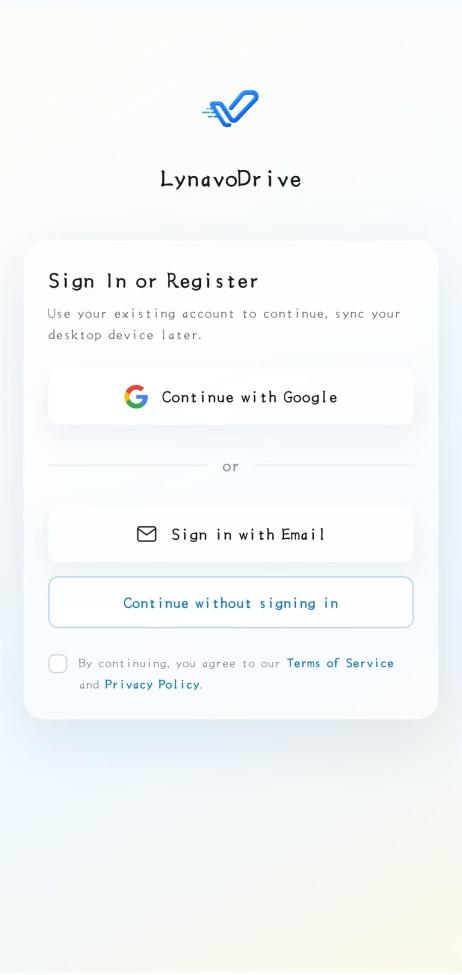
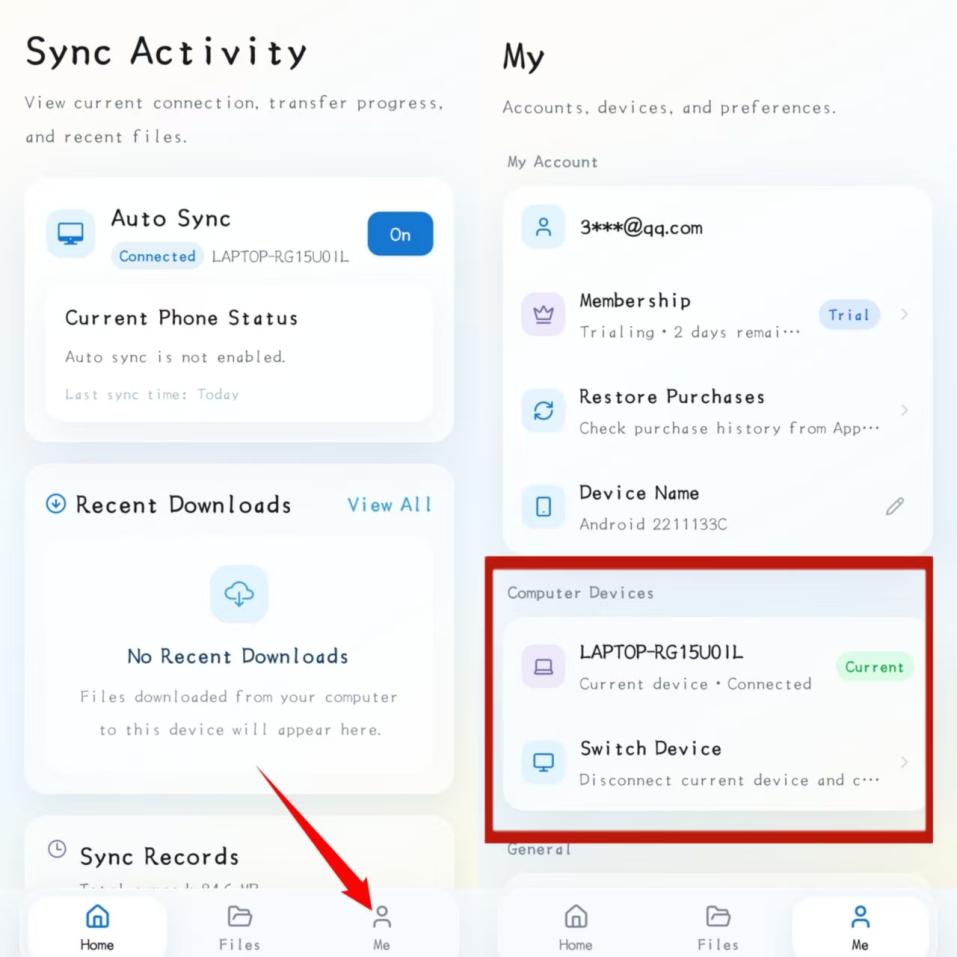
Sign in with an email verification code, Google, or Apple, or choose Continue without signing in for LAN features. The Me page shows the masked account, trial or subscription status, current computer, device switcher, Membership, and Restore Purchases.
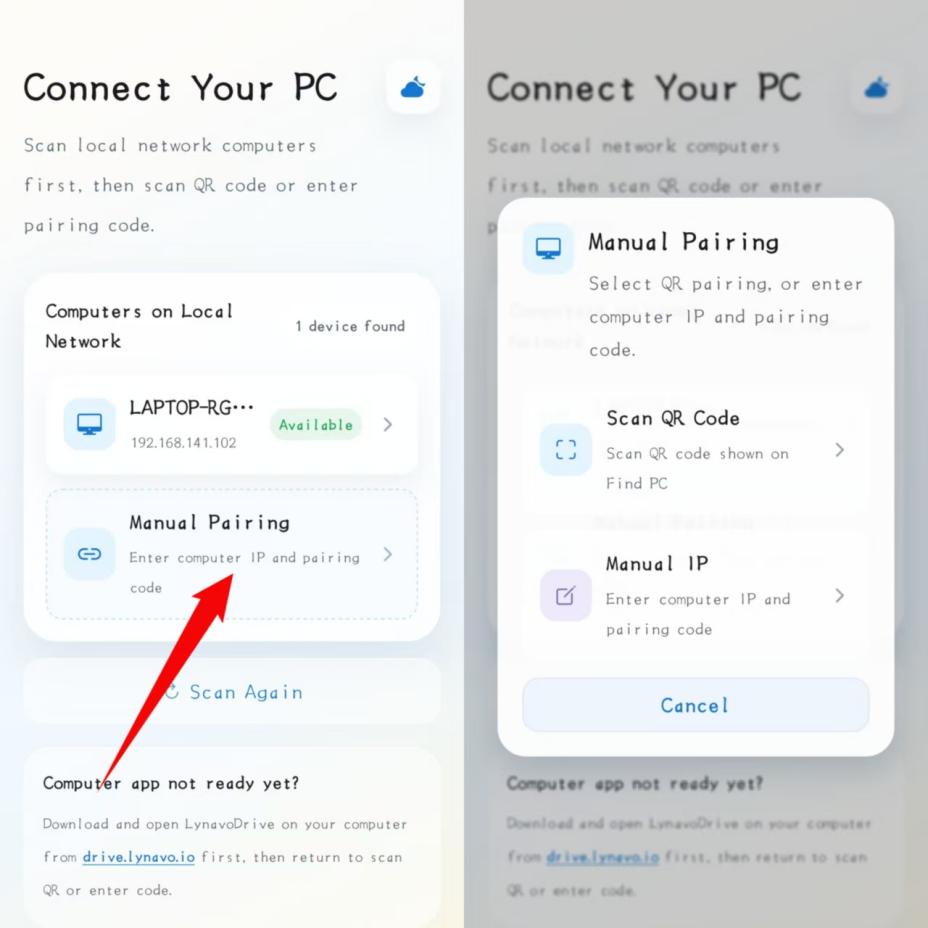
Put both devices on the same Wi-Fi, keep the desktop app open, and select a discovered computer. Manual Pairing provides QR code and manual IP paths; both use the six-digit code shown in Share Management.
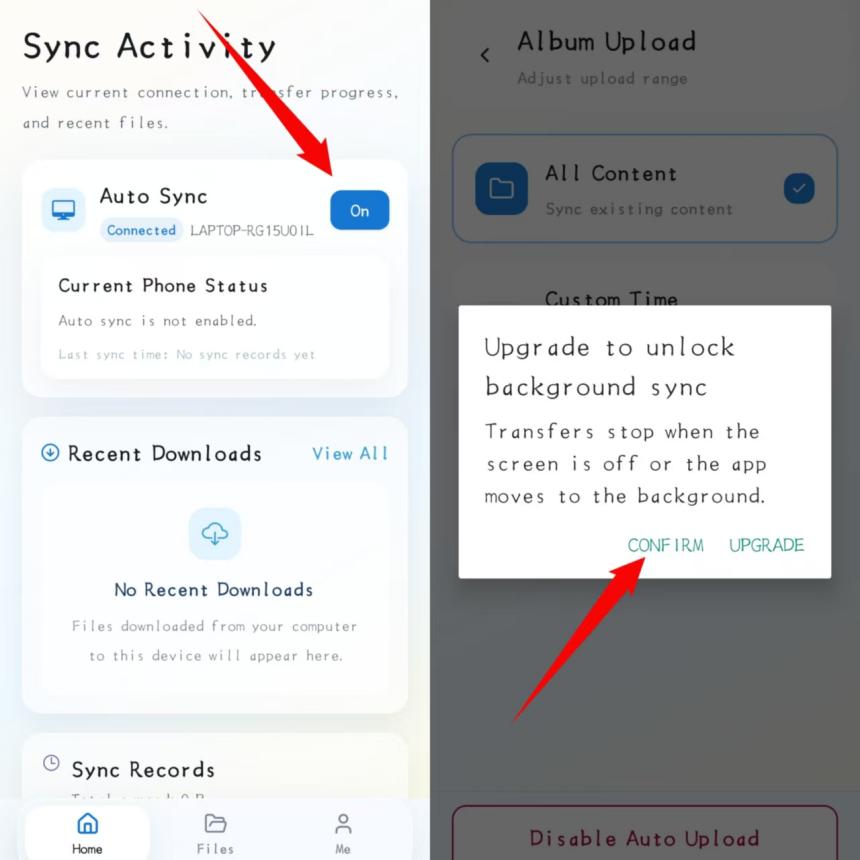
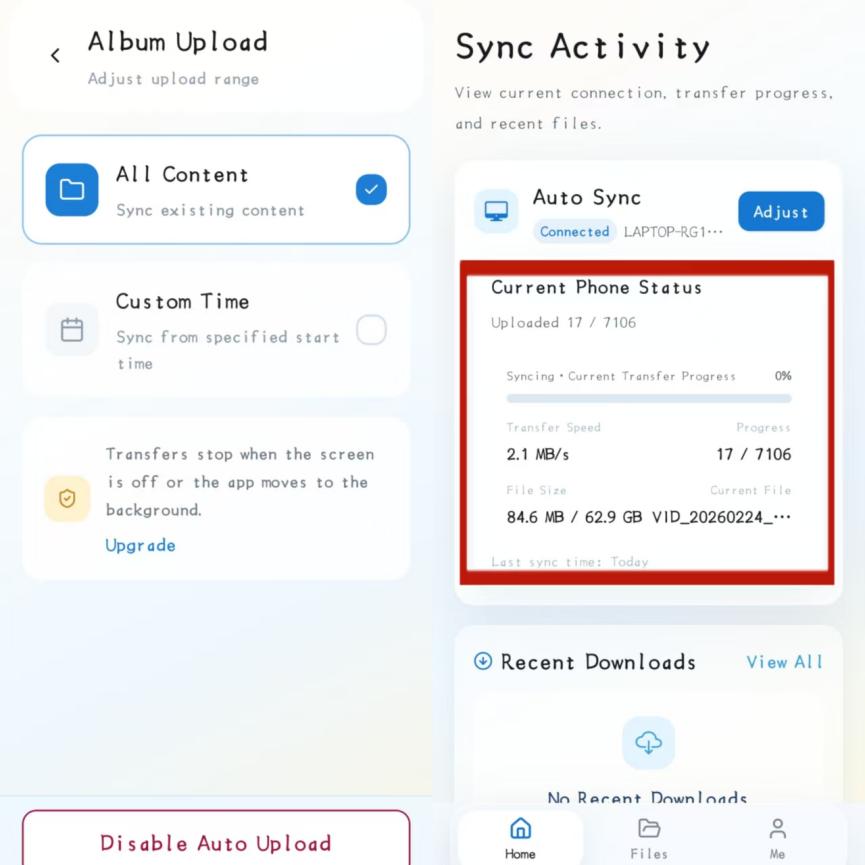
Grant photo-library access, connect a computer, then turn Auto Sync on. Free access shows a notice that transfers stop when the screen turns off or the app moves to the background. An active trial or subscription can continue within mobile operating-system limits and can sync all content or a custom time range.
Remote Resources has two destinations. Phone Sync Space shows media copied from the phone. Remote Access browses and downloads files from the computer. LAN access is free; the app automatically uses cross-network access only when the account and desktop meet the remote prerequisites.
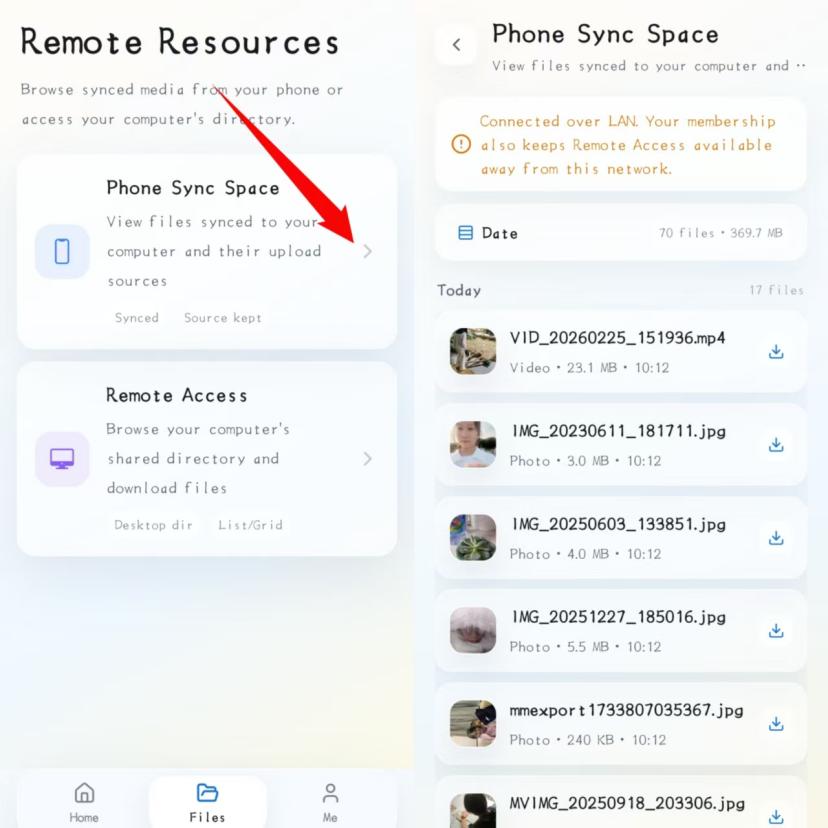
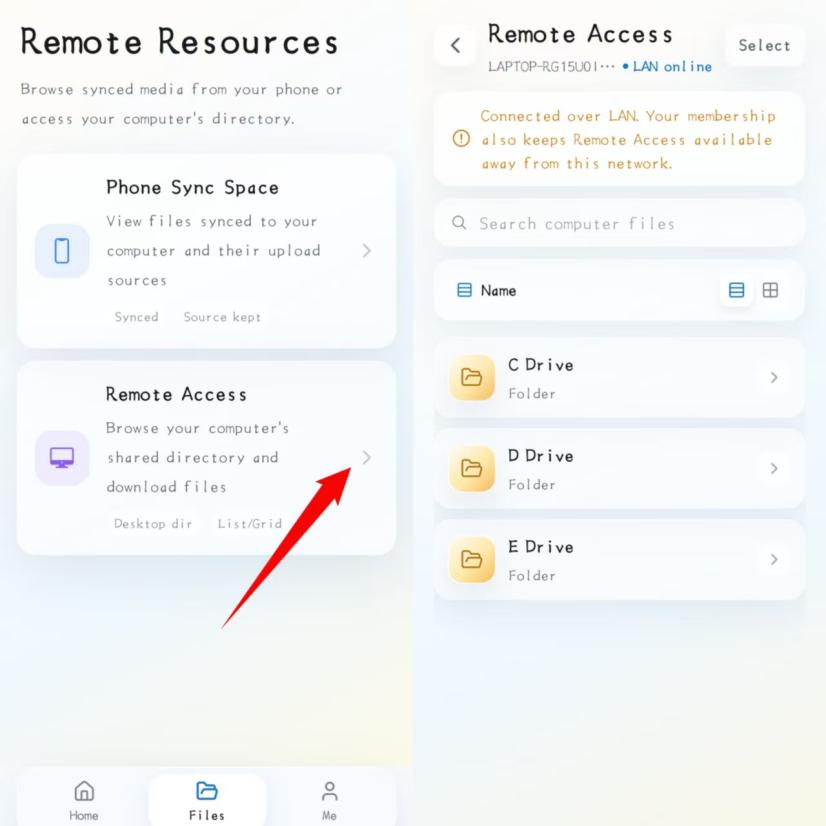
If the desktop signs out, the app asks you to sign in there. Turning Remote access off ends the public-network session immediately. When a trial or subscription expires, public-network sessions end and LAN access remains available.
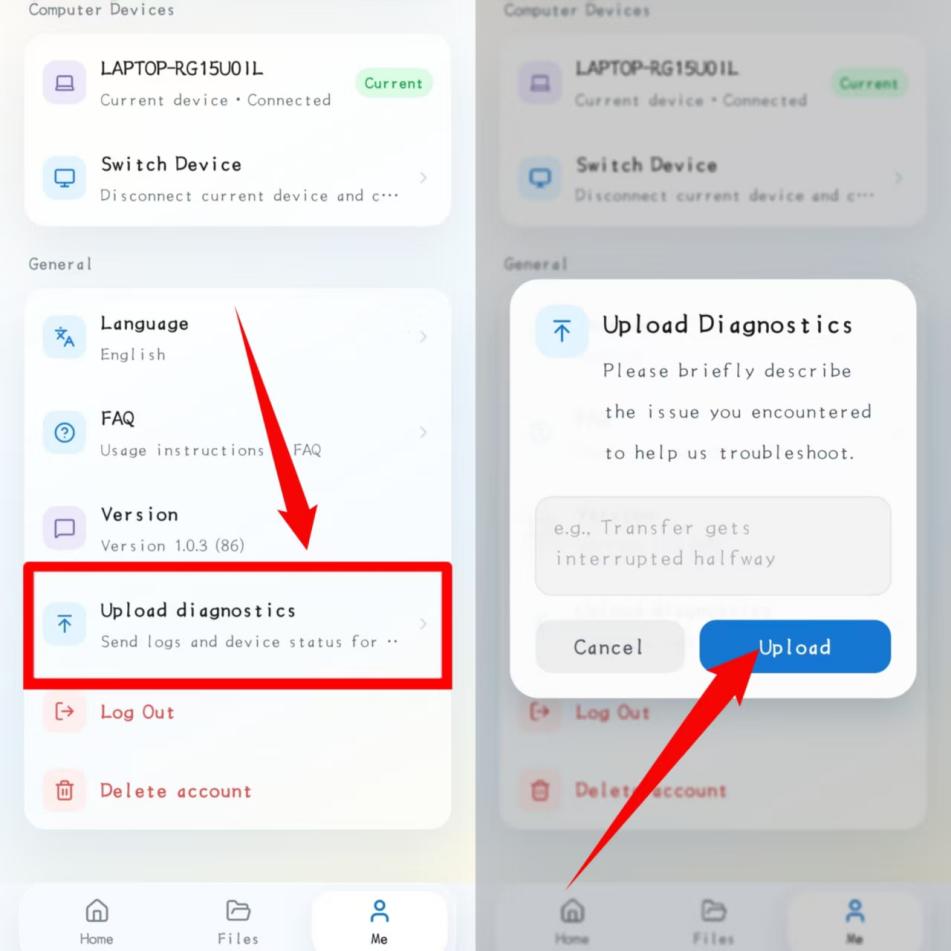
Sync Activity shows connection state, recent downloads, sync records, transfer progress, and the current computer. Upload diagnostics is free for every user and sends app logs, device state, transfer records, and error details with the issue description you enter.
Windows and macOS
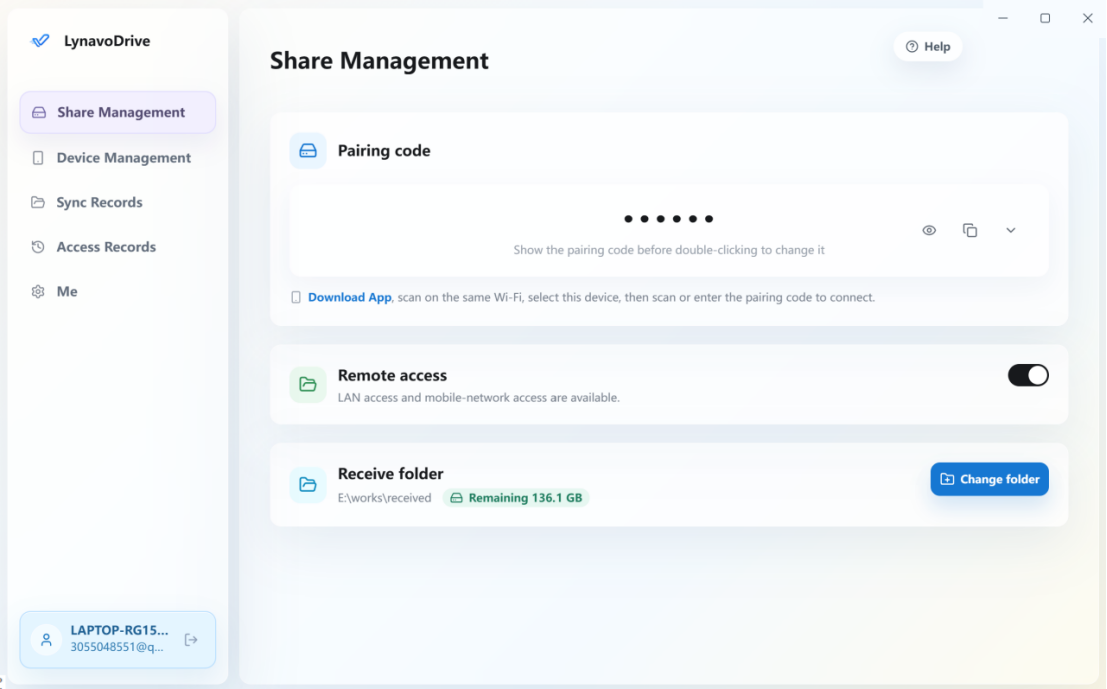
View or change the six-digit pairing code, present the computer QR code, turn Remote access on or off, and choose the receive folder. The folder panel also shows remaining disk space.
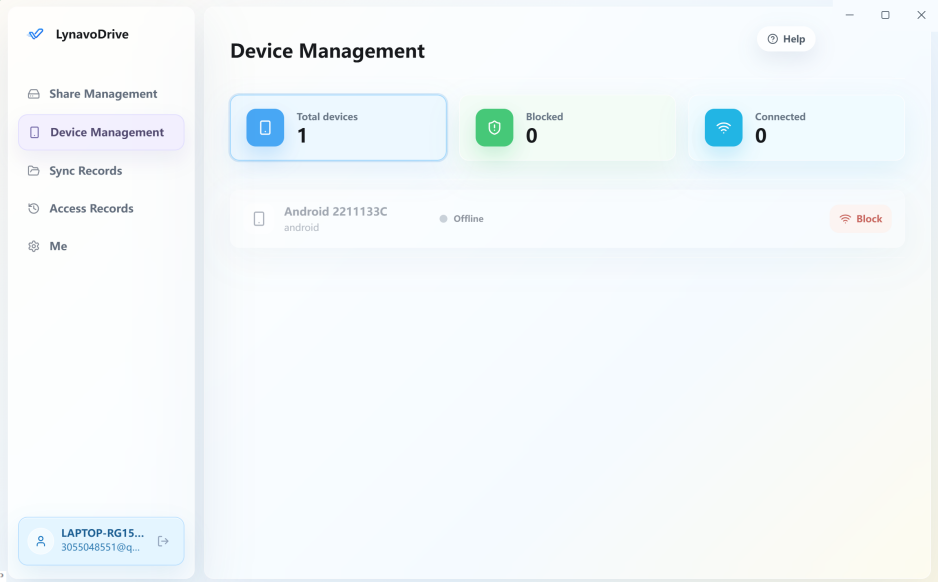
Review paired, offline, connected, and blocked phones. Block a device to prevent QR and code pairing, or remove the block before pairing it again. Offline devices remain listed for later management.
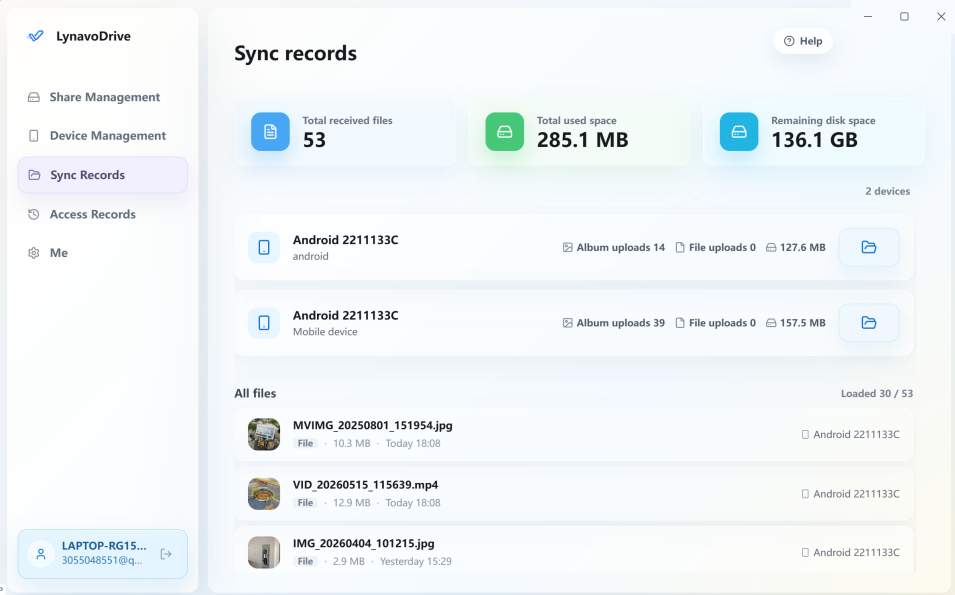
Check total received files, used space, remaining space, per-device album and file uploads, individual file sizes, and detailed transfer history. Existing files in the receive folder are skipped automatically; deleting a local file allows it to sync again later.
Feature access
| Feature | Free access | Trial or paid subscription |
|---|---|---|
| Pair on the same Wi-Fi | Available | Available |
| Upload phone files over the LAN | Available | Available |
| Browse and download computer files over the LAN | Available | Available |
| Automatic duplicate prevention | Available | Available |
| Continue upload with the screen off or app in background | Not available | Available within operating-system limits |
| Cross-network computer access | Not available | Available |
| Auto upload without the free-plan warning | Warning appears before upload | Starts directly |
The complete guide lists $0.99 per month or $9.99 per year. Billing, renewal, cancellation, and Restore Purchases follow the price and terms shown by the payment platform at checkout.
Common fixes
That is the free-access limit. Sign in for the one-time 30-day trial or use an active subscription to enable continued background transfer within operating-system limits.
On mobile, open Me and select Membership. On desktop, open Me to view the signed-in account and its current entitlement.
Open Device Management on the computer, find the phone, remove the Block restriction, and then scan or enter the pairing code again.
LynavoDrive skips a file that already exists in the receive folder without creating a failed task. If that local file is deleted, a later automatic upload can send it again.
Still need help?
For installation, sign-in, pairing, subscriptions, remote access, or diagnostics, email the official support team.
The open-source edition requires no account, includes the LAN local core, and excludes official cross-network service code.