
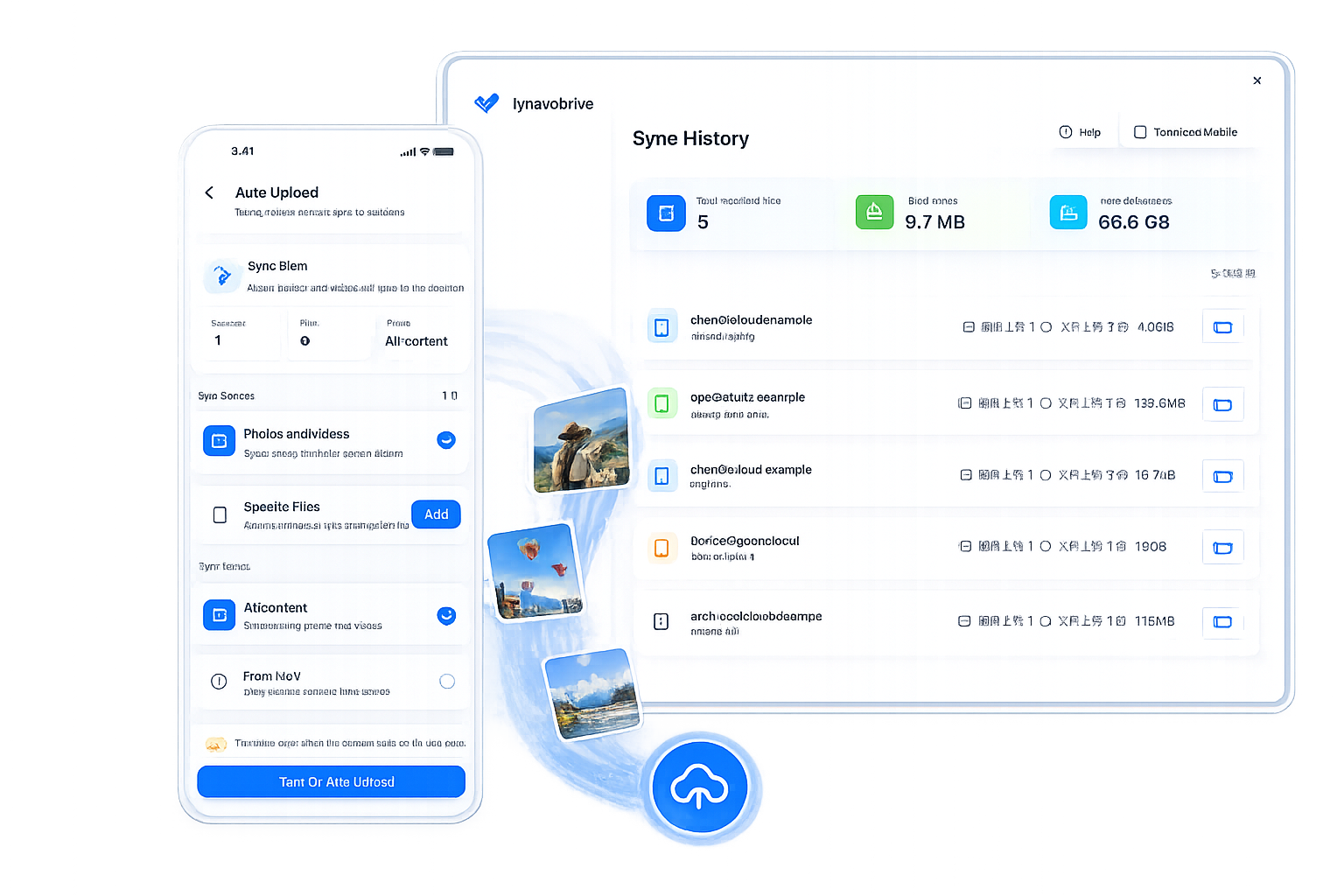
The quickest useful backup test is small: create one new photo, then confirm that the expected file appears and opens in the receive folder on your computer.
Starting with one file gives you a known source and timestamp. It also separates a basic transfer check from questions about a large existing library, background behavior, or transfer speed.
1. Identify the receive folder
Open LynavoDrive on the computer and confirm the receive folder before testing. Make sure it is the destination you expect and that the computer has enough available storage.
Keep the folder open during the test. A visible destination is easier to verify than relying only on an in-app status message.
2. Check the connection requirements
Automatic Backup must be enabled manually. For the first test:
- Keep the phone and computer on the same local network.
- Keep the computer awake with the desktop client running.
- Confirm that the phone is connected and authorized.
- Keep the phone app open while testing the basic transfer path.
Initial setup requires an internet connection. After setup, Automatic Backup and LAN file access can work on the same local network without public internet access. The router must still allow the devices to communicate; some guest, office, or campus networks isolate clients.
3. Create one recognizable test file
Take a new photo or short video that is easy to identify. A handwritten note showing the date can help distinguish it from older media.
Do not begin by importing a large library. One new file makes it clear whether the current setup works and keeps the result easy to inspect.
4. Verify the file on the computer
Wait for the new item to appear in the receive folder, then open it on the computer. Confirm that it is the file you just created and that it can be read normally.
LynavoDrive transfers the original file without intentional compression. This single test does not establish a universal speed result; actual behavior depends on the phone, computer, network, file, and available storage.
If the file does not arrive, check the troubleshooting guide before changing several settings at once.
5. Test background behavior separately
A successful app-open transfer proves the basic path, not every mobile operating state. Continuing a transfer with the screen off or while the app is in the background is a paid capability in the official build and remains subject to mobile operating-system limits.
Review the current plan comparison before using an app-open result to predict screen-off or background behavior.
6. Understand what deletion means
Phone-side and computer-side deletions are independent. Deleting the phone item does not describe a rule that deletes the computer copy, and deleting the computer copy does not remove the phone original.
That makes this a phone-to-computer backup workflow, not full two-way folder synchronization. Verify the copy before cleaning up media on either device.
7. Add another copy for important media
A file on one computer is not a complete disaster-recovery plan. It can still be affected by disk failure, theft, accidental damage, or a problem at the same location.
For important libraries, maintain another copy on separate storage or in another location. A verified computer copy is a strong first step, not the final layer.
Verification checklist
- The expected receive folder is known.
- Automatic Backup is enabled.
- The phone and computer are on the same local network.
- The computer is awake and the desktop client is running.
- One new test file appears and opens on the computer.
- Background and screen-off behavior has been checked against the current plan.
- Phone and computer deletion behavior is understood.
- Important files have a second-copy plan.
When the checklist is clear, download LynavoDrive and run the test with one new, non-sensitive file.