
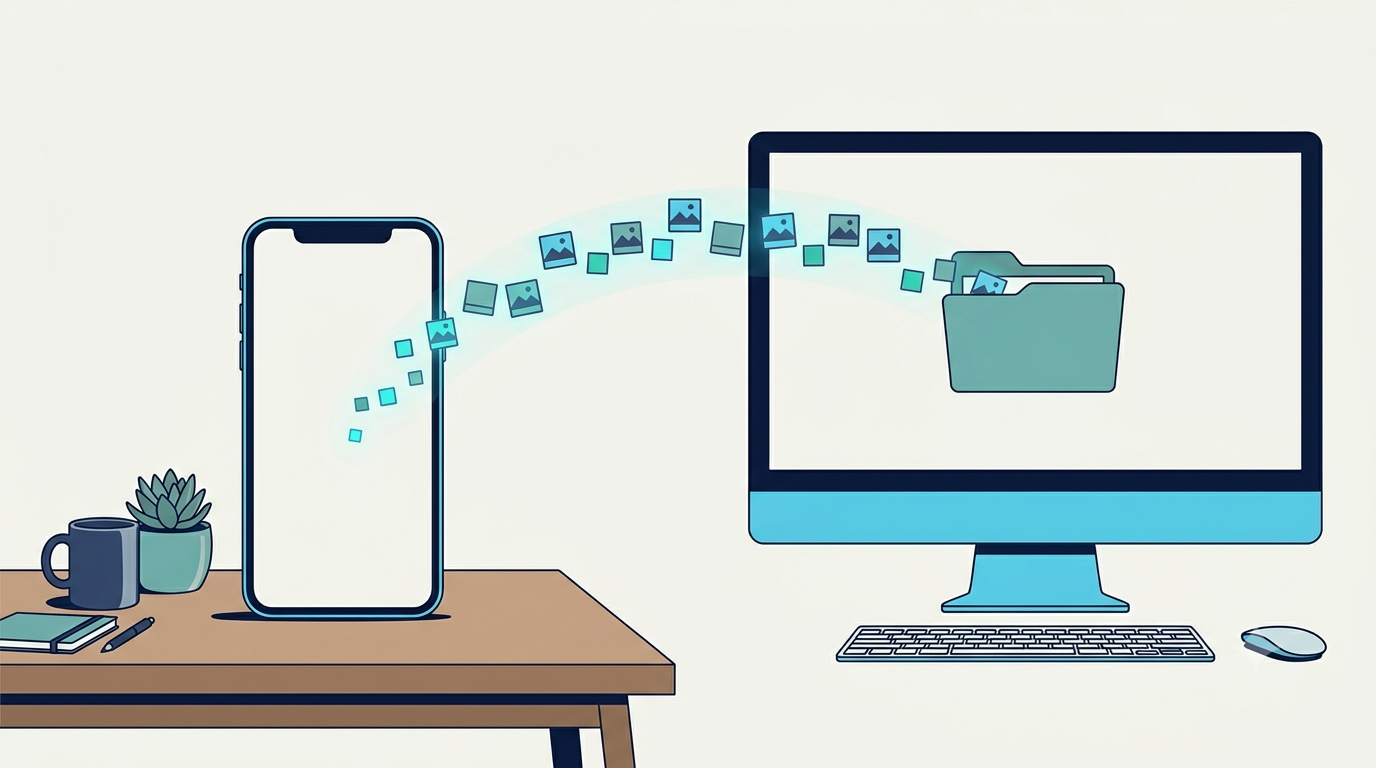
To automatically back up phone photos to your computer with LynavoDrive, install the desktop app first, set the receive folder and connection code, install the mobile app, pair the devices, and enable Automatic Backup.
What you need
- An iPhone or Android phone.
- A Windows x64 computer, a Mac with Apple Silicon, or an Intel Mac.
- Enough storage in the selected receive location.
- Public internet access for initial setup.
- The phone and computer on the same network for automatic backup.
1. Install the desktop app
Open the current LynavoDrive download page and choose the official installer for Windows x64, macOS Apple Silicon, or macOS Intel.
Install and open the desktop app before setting up the phone. The computer is the destination for the photo and video copies.
2. Set the receive folder and connection code
Choose the receive folder in the desktop app. Then prepare the connection code that the phone will use during pairing.
Do not publish, send, or store a connection code in screenshots or public support messages.
3. Install and pair the mobile app
Install LynavoDrive from Google Play or the App Store. In the mobile app, choose the intended computer and enter its connection code.
Initial setup requires an internet connection. Complete pairing before testing LAN-only behavior.
4. Enable Automatic Backup
Automatic Backup is a separate user choice and must be enabled manually. Keep the phone and computer on the same network for new photos and videos to upload automatically.
After setup, Automatic Backup and LAN file access can work over that local network without public internet access.
5. Verify the first new photo
Take one new photo, then confirm that it appears in the receive folder and opens on the computer. LynavoDrive transfers the original file without intentional compression.
Actual transfer behavior still depends on the devices, network, available storage, and file. Do not use one transfer to make a universal speed or reliability claim.
Understand background and deletion behavior
Screen-off transfers on the LAN and background transfers are paid capabilities in the official build.
Phone and computer deletions are independent. Deleting a phone photo does not describe a full two-way synchronization rule with the computer copy, and deleting the computer copy does not remove the phone original.
Add another copy for important photos
A computer copy protects against some phone-loss and storage-pressure scenarios. It does not protect against every failure affecting the computer or its location. Important libraries need another copy on separate storage or in another location.
Download the current installers and complete one first backup.